Estimate Management
View and manage damage estimates on your appraisals, including Xactimate line items, PDF extraction to a ready-to-import ESX file or coded spreadsheet, and catalog search.
The opposing appraiser sends you their estimate as a 40-page PDF. You need every line item, every quantity, every unit cost in front of you in a workable format so you can compare scope against your own estimate and identify the real points of dispute. Retyping 200 line items by hand is a half-day of work that is also where data entry errors creep in and undermine your credibility in negotiation.
AwardLettr handles estimates two ways: PDF extraction that reads the estimate, matches every line to its Xactimate catalog code, and generates a ready-to-import ESX file (or a CSV spreadsheet if you prefer Excel), and manual entry against a built-in Xactimate catalog so the codes and descriptions stay standardized. Once the data is in the system, you can reorganize by work area, edit inline, and watch RCV totals recompute automatically as you negotiate.
Useful for every appraiser handling disputed estimates. The PDF extraction matters most when working with carriers who do not share native estimate files. The catalog matters most for appraisers who want their own estimates to match Xactimate nomenclature that the carrier reviewers are used to seeing.
What Is an Estimate in AwardLettr?
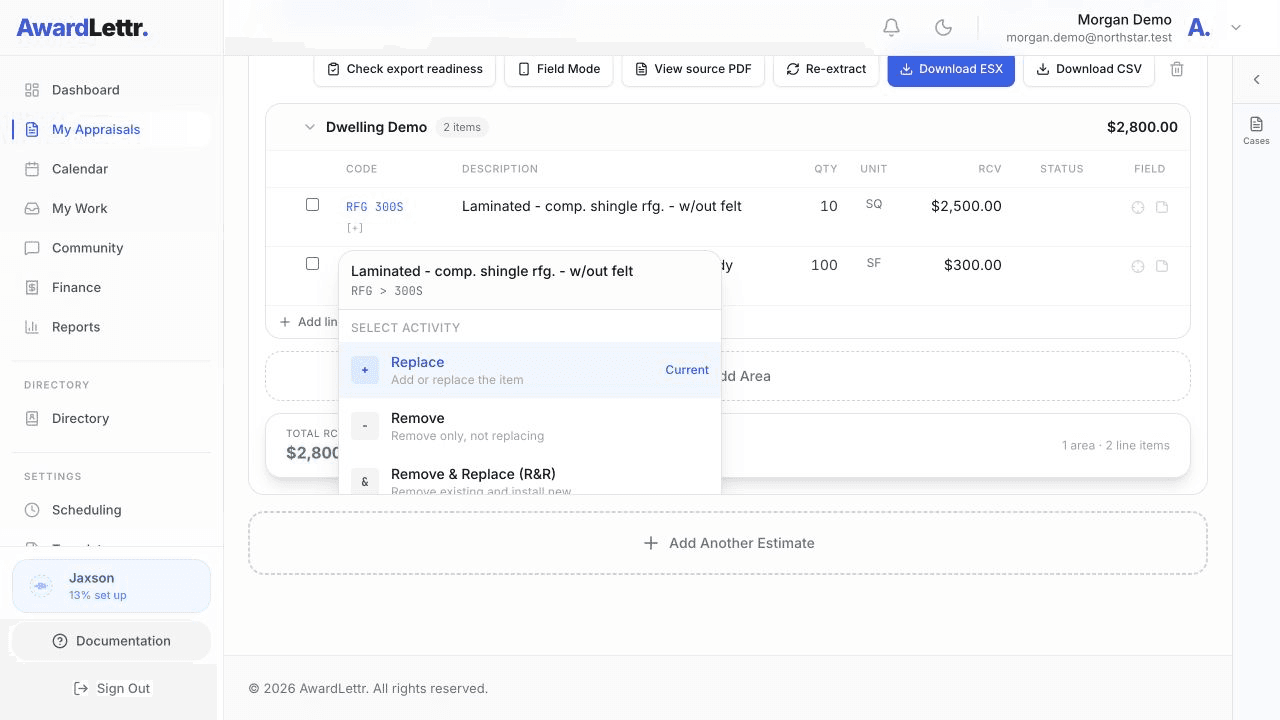
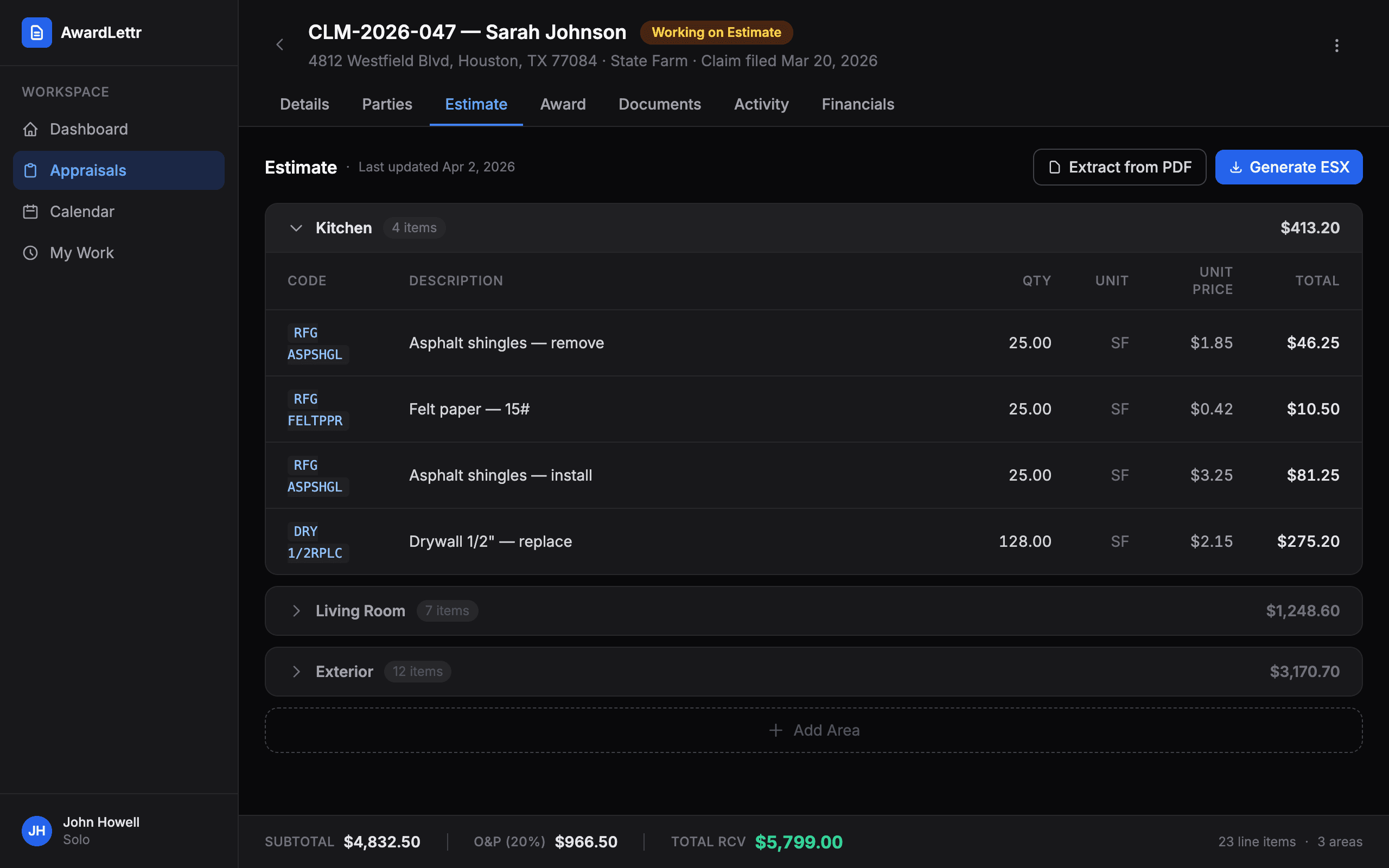
In the appraisal context, an estimate is a collection of line items that describe individual repair or replacement activities. The Estimate tab shows each item's Xactimate code, description, quantity, unit, RCV, matching status, and field status. Line items are grouped by work area (for example, Roof, Kitchen, or Living Room).
Viewing and Managing Line Items
Estimate line items live on the Estimate tab of each appraisal. From there you can:
- Add individual line items manually
- Edit quantities and descriptions inline
- Move items between work areas
- Delete or hide specific line items
- View running RCV totals per work area and overall
Work Areas
Work areas organize line items by physical location or scope category on a property. Common work areas include Roof, Exterior, Interior, HVAC, and Detached Structures. You can create custom work areas to match the structure of your estimate. Totals are summarized per work area, making it easy to negotiate individual sections of the loss.
PDF Extraction to ESX or Spreadsheet
If you have an estimate in PDF format (for example, from the carrier's adjuster), you can upload the PDF and AwardLettr will extract the line items automatically, with every line matched to its Xactimate catalog code. Download the result as a ready-to-import ESX file, or as a CSV (Excel) spreadsheet if you would rather work the lines in Excel or hand them to a VA.
Upload the PDF
From the Estimate tab, click Upload Estimate PDF to attach the estimate.
Wait for extraction
AwardLettr parses the document to identify line items, quantities, and costs, then matches each line to its Xactimate catalog code.
Review and confirm
Check the extracted items for accuracy. Correct any matches that look off (your corrections train future estimates).
Download ESX or CSV
Download the ESX and import it into Xactimate, or export the CSV spreadsheet to work the lines in Excel or hand them to a VA.
Import the ESX Through Xactimate Online
Extraction Accuracy Varies
Catalog Search for Xactimate Activities
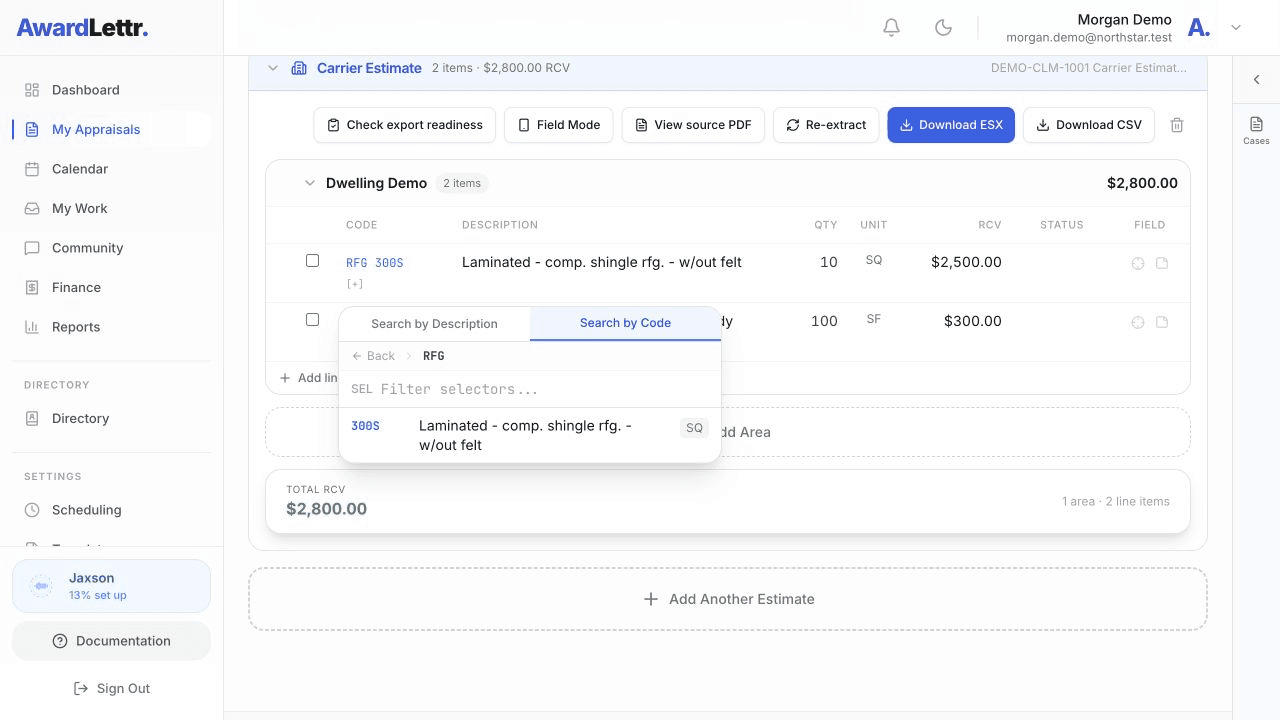
When adding line items manually, you can search the built-in Xactimate activity catalog to find standard line item descriptions and codes. This ensures your line items use recognized Xactimate nomenclature and speeds up data entry.
Click Add Line Item
In the Estimate tab, choose a work area and click Add line item.
Assign the catalog code
Click Assign catalog code, choose Search by Code, and enter the CAT value, such as RFG for roofing.
Choose the selector and activity
Select the matching SEL value, then choose the activity that completes the Xactimate code.
Enter the estimate values
Enter the quantity and unit, then add an optional RCV amount before saving the line item.